
7 Configuration Mistakes That Invite Malicious Mobile Apps
Most mobile infections succeed because administrators ignore permission scopes, bypass signature verification, and disable sandbox isolation on managed devices.
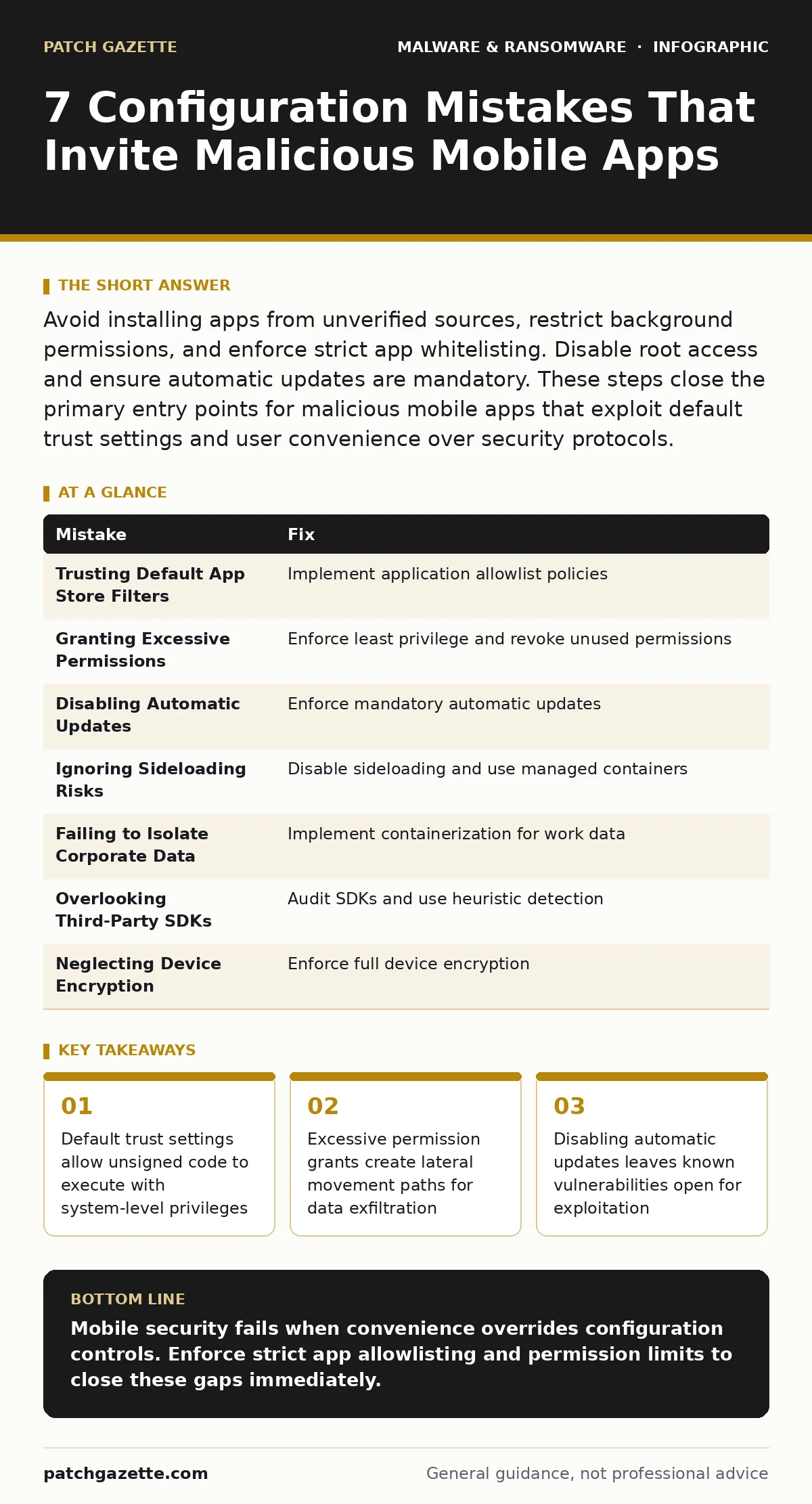
Avoid installing apps from unverified sources, restrict background permissions, and enforce strict app whitelisting. Disable root access and ensure automatic updates are mandatory. These steps close the primary entry points for malicious mobile apps that exploit default trust settings and user convenience over security protocols.
Mistake 1: Trusting Default App Store Filters
Mobile operating systems assume that any application published in their official store is safe. This assumption fails because review processes often miss logic bombs or disguised functionality. Attackers submit apps that appear benign during automated scans but activate malicious behavior only after a specific trigger. You assume the platform vendor has vetted the code, but they only check for known bad signatures. This gap allows sophisticated threats to slip through initial screening.
Why it hurts:
You inherit the attacker’s code without realizing it. The app may request minimal permissions initially, then exploit a vulnerability in the OS to escalate privileges. Once elevated, it can access contacts, messages, and financial data. The damage occurs silently because the app holds a trusted certificate. Users see no warning signs, and standard security tools often whitelist store-published applications by default.
The fix:
Implement an application allowlist policy. Only permit installations of pre-approved applications that have undergone independent security review. Disable the ability to install apps from unknown sources on all managed devices. Combine this with real-time protection that monitors behavior rather than just checking signatures. This approach ensures that even if a malicious app reaches the store, it cannot execute on your devices.
Mistake 2: Granting Excessive Permissions
Users often click "Allow" on permission prompts without reading them. An email reader does not need access to your camera, microphone, or location data. When you grant unnecessary permissions, you provide the application with a direct channel to sensitive hardware and data. Attackers use these broad permissions to harvest information or record audio without your knowledge. The app appears functional, but it is actively spying on your environment.
Why it hurts:
Broad permissions enable data exfiltration and surveillance. A malicious app with location access can track your movements and correlate them with other data. If it also has microphone access, it can record conversations in secure areas. This data is often sold or used for targeted attacks. The initial compromise may be minor, but the expanded access creates a significant risk profile. You lose control over which apps can see what.
The fix:
Enforce the principle of least privilege. Configure device policies that restrict permission grants for sensitive categories like camera, microphone, and location. Use privacy dashboards to review and revoke permissions for apps that no longer need them. Educate users to deny permissions that do not align with the app’s core function. This limits the blast radius if an app is compromised.
Mistake 3: Disabling Automatic Updates
Automatic updates patch known vulnerabilities in the operating system and applications. When you disable them, you leave these doors open for attackers. Many malicious mobile apps exploit known flaws in outdated software versions. Attackers scan for devices running old software because they know the exploits are available. Your device becomes an easy target for automated attack campaigns that target specific version numbers.
Why it hurts:
Unpatched systems remain vulnerable to known exploits indefinitely. Attackers do not need to discover new weaknesses when old ones remain open. This increases the likelihood of successful infection. The malicious app can exploit the unpatched flaw to bypass security controls. You face a higher risk of compromise simply because the patch was not applied. This is a preventable failure that wastes resources on remediation later.
The fix:
Enforce mandatory automatic updates for the operating system and critical applications. Configure policies that prevent users from deferring security patches. Ensure that updates are tested in a staging environment before deployment to avoid compatibility issues. This keeps your defense surface current against known threats. Regular updates reduce the window of opportunity for attackers.
Mistake 4: Ignoring Sideloading Risks
Sideloading allows installation of applications from outside official stores. This is common in enterprise environments for custom tools. However, it also bypasses security checks. Attackers distribute malicious apps via email or websites, instructing users to enable sideloading. Once enabled, the device trusts the source implicitly. This opens the door for malware that would never pass store review. You introduce a significant security gap for convenience.
Why it hurts:
Sideloading bypasses the operating system’s security sandbox. The installed app may have unrestricted access to system resources. Attackers use this to install keyloggers or remote access tools. These tools can capture credentials and control the device remotely. The damage is often severe because the app operates with high privileges. You lose the protection layer that the official store provides.
The fix:
Disable sideloading by default on all devices. If custom apps are required, use a managed container or enterprise app management solution. Verify the integrity of all sideloaded applications before installation. Monitor for attempts to enable sideloading and alert security teams. This maintains a secure boundary even when custom software is needed.
Mistake 5: Failing to Isolate Corporate Data
Many users mix personal and work applications on the same device. Without isolation, a malicious app in the personal profile can access corporate data. Attackers target this overlap to steal sensitive information. They may infect a personal game app, then use it to bridge into the work profile. This lateral movement is possible because the data is not properly segregated. You expose corporate secrets to consumer-grade security risks.
Why it hurts:
Data leakage occurs when boundaries are blurred. A compromised personal app can read clipboard data, notifications, or files from the work profile. Attackers exploit this to extract emails, documents, and credentials. The breach may go undetected because the initial infection appears harmless. You lose control over where corporate data resides and who can access it.
The fix:
Implement containerization solutions that separate personal and work data. Enforce policies that prevent data sharing between containers unless explicitly allowed. Use mobile device management to enforce encryption and remote wipe capabilities for the work container. This ensures that a compromise in one area does not affect the other.
See also: Mobile Security Apps: Real Protection or Just Another Battery Drain?
Mistake 6: Overlooking Third-Party SDKs
Apps often include third-party software development kits for analytics or advertising. These SDKs can contain vulnerabilities or malicious code. Attackers compromise SDK providers to distribute malware to thousands of apps at once. You trust the main app, but the embedded code is unvetted. This indirect attack vector is difficult to detect and widely used. Your security assumptions are undermined by supply chain risks.
Why it hurts:
You inherit risks from vendors you do not directly manage. A vulnerable SDK can serve as a backdoor for attackers. Malicious SDKs can exfiltrate data or execute commands on your device. The main app developer may be unaware of the compromise. You face a hidden threat that standard security checks may miss. The scale of impact is large because many apps use the same SDK.
The fix:
Audit third-party SDKs used in your approved applications. Monitor for known vulnerabilities in popular SDKs. Use heuristic detection to identify suspicious behavior from embedded code. Prefer apps that disclose their SDK usage and security practices. This reduces exposure to supply chain attacks.
Mistake 7: Neglecting Device Encryption
Unencrypted devices allow attackers to access data if the device is lost or stolen. Even with strong passwords, physical access can bypass security. Attackers can remove the storage chip and read the data directly. Encryption ensures that data is unreadable without the proper key. Without it, your data is exposed to anyone with physical access. This is a basic but often overlooked protection.
Why it hurts:
Data exposure occurs even if the app is not malicious. Physical theft leads to immediate data loss. Attackers can recover files, photos, and credentials from the storage. Encryption prevents this by scrambling the data. Without it, your security posture is weak against physical threats. You rely on hope rather than technical controls.
The fix:
Enforce full device encryption on all managed devices. Ensure that encryption keys are managed securely and not stored on the device itself. Use remote wipe capabilities to destroy keys if a device is lost. This protects data even if the device falls into the wrong hands.
| Mistake | Fix |
|---|---|
| Trusting Default App Store Filters | Implement application allowlist policies |
| Granting Excessive Permissions | Enforce least privilege and revoke unused permissions |
| Disabling Automatic Updates | Enforce mandatory automatic updates |
| Ignoring Sideloading Risks | Disable sideloading and use managed containers |
| Failing to Isolate Corporate Data | Implement containerization for work data |
| Overlooking Third-Party SDKs | Audit SDKs and use heuristic detection |
| Neglecting Device Encryption | Enforce full device encryption |
Key takeaways
- Default trust settings allow unsigned code to execute with system-level privileges
- Excessive permission grants create lateral movement paths for data exfiltration
- Disabling automatic updates leaves known vulnerabilities open for exploitation
Mobile security fails when convenience overrides configuration controls. Enforce strict app allowlisting and permission limits to close these gaps immediately.
Frequently asked questions
Can antivirus software stop all malicious mobile apps?
No, antivirus software relies on known signatures and may miss new or customized threats. It should be combined with behavior monitoring and strict permission controls.
How do I detect a keylogger on a mobile device?
Look for unusual battery drain, increased data usage, or unexpected permissions. Use heuristic detection tools that monitor for suspicious background processes.
What is the risk of wiper malware on mobile devices?
Wiper malware destroys data and renders the device unusable. It often targets enterprise environments to cause disruption. Ensure you have disaster recovery plans to restore data.
Does tamper protection help against mobile malware?
Yes, tamper protection prevents attackers from modifying or disabling security software. It ensures that your protection layers remain active and effective.
How this guide was produced: written by the Patch Gazette editorial team with AI assistance, checked against the public references listed below, and reviewed when the facts change. See our editorial policy or report an error.